
If you run an online store, checking your daily sales numbers is probably part of your morning routine. But looking only at final purchases leaves you flying blind. It tells you that a sale happened, but it doesn’t tell you why ninety percent of your visitors left without buying a single thing. To truly understand your shoppers, you need to track more than just the final checkout. That is where Google Analytics 4 (GA4) comes in. By default, GA4 collects basic data, but to get a real competitive edge, you need a smart mix of Google’s standard tracking and your own custom tracking. In this guide, you’ll learn how combining standard Recommended Events with Custom Events for your e-commerce website can give you a complete and accurate picture of your customer’s journey, from the moment they land on your site to the final purchase.
What Are Recommended Events? (The Foundation)
Before setting up advanced tracking, it’s important to get the basics right. For GA4 e-commerce events, Google provides a list of pre-defined event names called recommended events. These give online stores a standard way to track common customer actions.
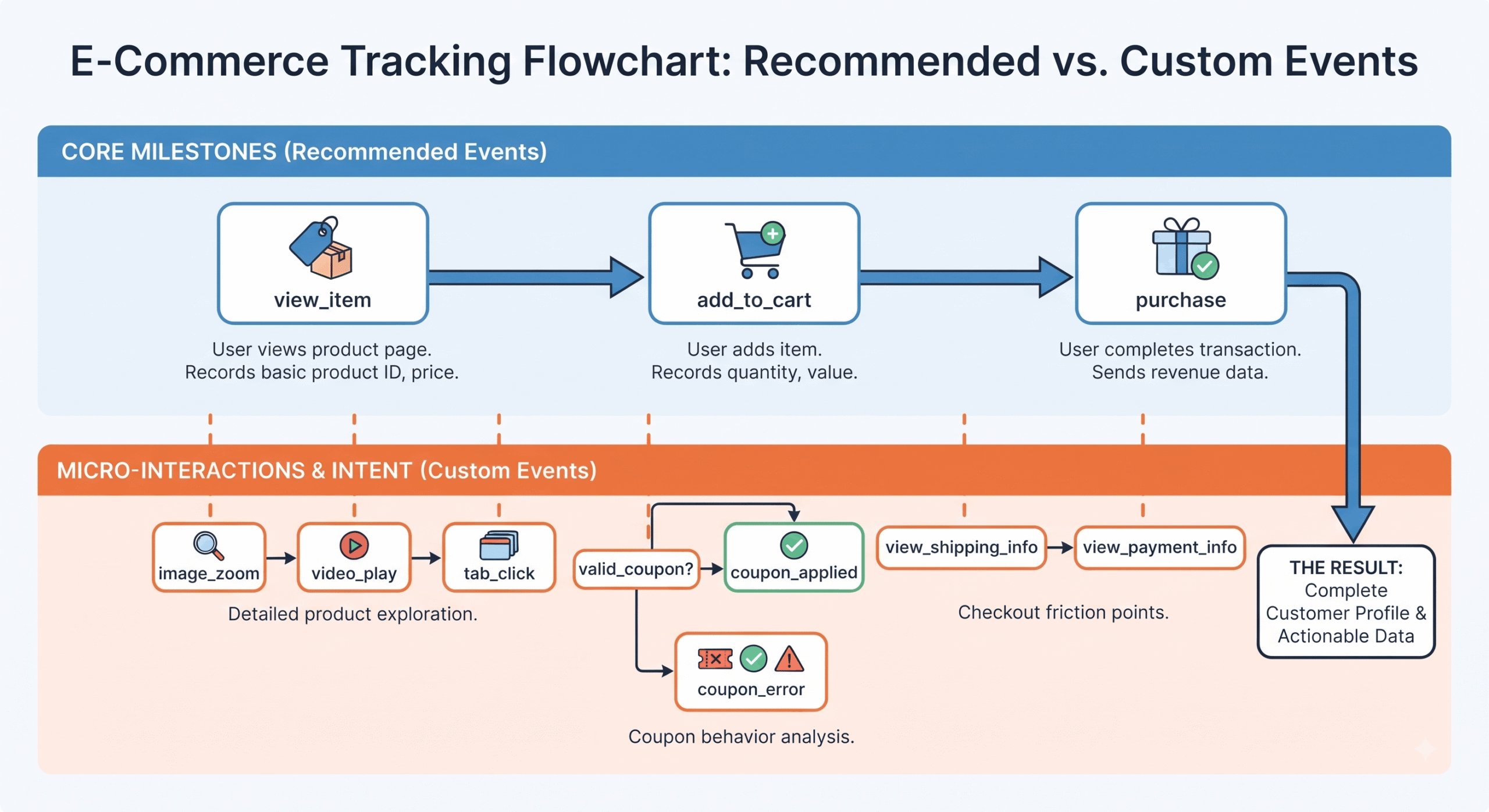
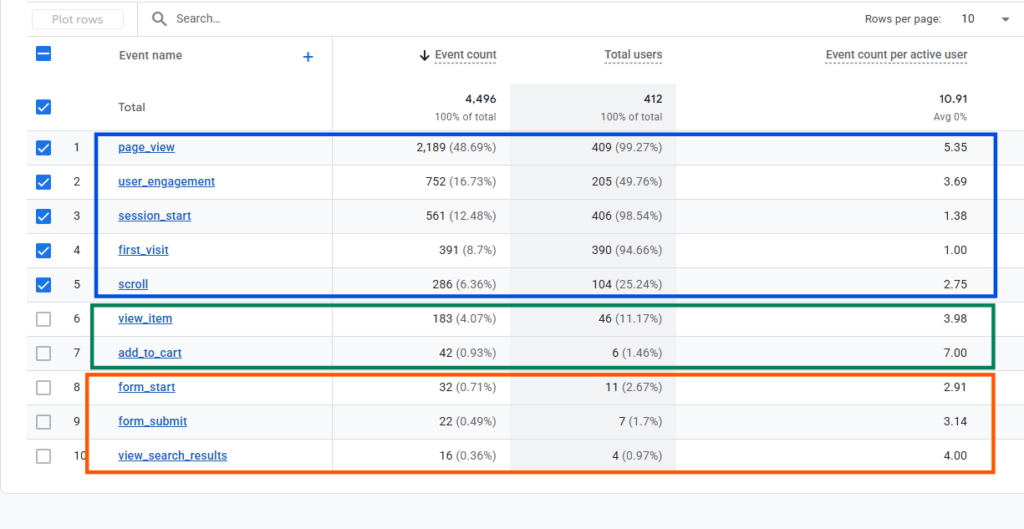
For example, `view_item` tracks when someone views a product, `add_to_cart` tracks when they add a product to their cart, and `purchase` tracks when they complete an order. Using these recommended event names helps GA4 understand what is happening on your website and gives you more accurate e-commerce reports.
These events are important because they provide the data used in GA4’s e-commerce and revenue reports. They also help you understand how visitors move through your buying journey, from viewing a product to making a purchase.
For example, when a shopper clicks Add to Cart, a properly configured `add_to_cart` event can send useful information such as the product ID, price, and quantity to GA4. This allows you to see not just that an item was added to the cart, but also which product was added, how much it cost, and how many units were added.
What Are Custom Events? (The Competitive Edge)
Google’s recommended events cover the most common actions on an online store, but they can’t track everything that happens on your website. This is where GA4 custom events for e-commerce become useful.
Custom events allow you to create your own events to track actions that are specific to your store and important to your business. For example, you might want to track when a shopper enters an invalid coupon code, opens a product specifications tab, or filters products by size and colour.
These events give you a deeper understanding of how people use your website. Standard events can tell you that a shopper added a product to their cart, but a custom event can help explain what happened before they abandoned the purchase.
For example, if you track an `invalid_coupon` custom event, you can see how often shoppers encounter coupon errors. If many users experience the error and then leave the website without purchasing, it could indicate that a broken or confusing discount code is affecting your sales.
In simple terms, recommended events tell you what customers are doing, while custom events help you track the specific actions and problems that matter to your store.
How Recommended Events and Custom Events Work Together: : A Real-World Example
Recommended events and custom events work best when they are used together. Let’s look at a simple example from an online store.
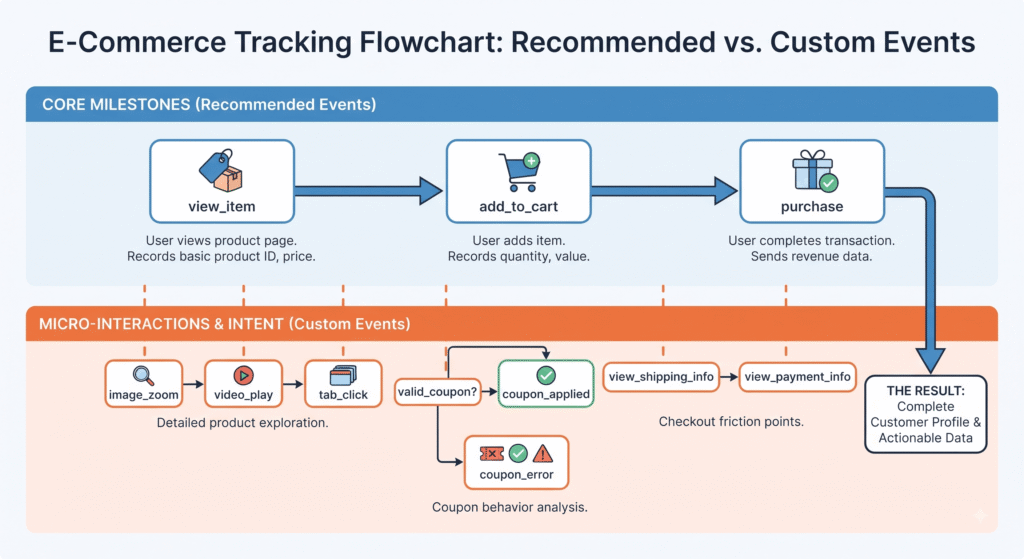
Imagine a shopper visits a product page and spends ten minutes looking at a jacket. First, the GA4 recommended event `view_item` records that the shopper viewed the product. It can also send important details such as the product ID, price, and category to GA4. This information can then be used in your standard e-commerce and product performance reports.
But you may also want to know how the shopper interacted with the product page. This is where GA4 custom events, often set up using Google Tag Manager, can provide more detail.
For example, you could track custom events when the shopper:
- Zooms in on product photos three times
- Opens the material and care information
- Uses the size availability filter
The `view_item` event alone tells you that the shopper viewed the jacket. The custom events add more context by showing what the shopper did while viewing it.
Together, these events give you a much clearer picture of customer behaviour. Instead of seeing just a product view, you can identify visitors who are actively exploring the product and may have a stronger interest in buying it.
In simple terms, recommended events tell you the main action, while custom events add the extra details that help you understand customer intent and behaviour.
Simple Step-by-Step Setup in Google Tag Manager (GTM)
Setting up both recommended and custom events may sound technical, but you can manage most of the setup through Google Tag Manager (GTM) without writing complicated code. The process can be broken down into a few simple steps.
Step 1: Set Up Your Recommended E-commerce Events
Start by setting up your standard e-commerce events, such as view_item, add_to_cart, and purchase. These events should use the product information available in your website’s data layer, such as product name, ID, price, quantity, and currency.
This helps GA4 receive consistent product and transaction data and ensures your e-commerce reports have the information they need.
Step 2: Set Up Your Custom Events
Next, identify the actions that are important to your specific website but are not covered by GA4’s recommended events. You can then create separate GTM tags and triggers to track these actions.
For example, you could create custom events to track:
- Product image clicks or zooms
- Opening a product information section
- Failed coupon attempts
- Using product filters
These events help you understand the smaller actions that may influence whether someone continues shopping or leaves your website.
Step 3: Test Your Events
Before relying on the data, test your setup to make sure each event is firing correctly and sending the right information to GA4. Google Tag Manager’s Preview mode and GA4 DebugView can help you check whether your events are being triggered as expected.
Step 4: Mark Important Events as Key Events
Once your events are working correctly, identify the actions that are most important to your business. For example, a completed purchase should usually be treated as a key event. Depending on your goals, an important custom event may also be useful to track as a key event.
This brings your tracking into one GA4 property, where you can use the data to understand customer behaviour and measure the actions that matter most to your business.
In simple terms, GTM helps you collect the right data, GA4 organizes and reports that data, and key events help you focus on the actions that matter most.
How to Use This Combined Data to Grow Your Store
Collecting data is useful, but the real value comes from using that data to make better decisions. When you combine standard e-commerce events with custom behavioural data, you can understand not only what shoppers are doing, but also where they may be losing interest.
1. Build Better Remarketing Audiences
You can use your GA4 data to create more specific audiences for remarketing. Instead of targeting everyone who visited a product page, you can focus on shoppers who showed stronger buying intent.
For example, you could create an audience of users who viewed a product, opened its details, and interacted with product images but did not complete a purchase. These users may be more valuable to target than someone who only visited the page for a few seconds.
2. Find Problems That May Be Costing Sales
Custom events can also help you identify problems that standard e-commerce reports may not clearly show.
For example, if you notice a sudden increase in invalid_coupon events, it could mean that shoppers are having trouble using a discount code. Similarly, if many users use a particular product filter but then leave the website, the filter may not be working as expected or may be making it difficult to find the right products.
These insights give your marketing, UX, and development teams a clear starting point for investigating and fixing the problem.
3. Understand Customer Intent Better
The combination of recommended and custom events can also help you separate casual visitors from highly engaged shoppers. Someone who only views a product once is different from someone who checks multiple images, reads product information, checks size availability, and adds the product to their cart.
This deeper understanding can help you improve your website, create more relevant remarketing campaigns, and focus your efforts on the changes that are most likely to improve sales.
In simple terms, GA4 recommended events show the main stages of the buying journey, while custom events help you understand what is happening between those stages. Together, they turn your analytics data into actionable insights for growing your store.
Conclusion
Running a successful online store requires looking far beyond basic sales totals. By pairing Google’s standard GA4 recommended events with tailored GA4 custom events, you bridge the gap between surface-level reporting and deep behavioral intelligence. Recommended events give your store a solid structural foundation and power your automated dashboards, while custom events expose the hidden intent, errors, and micro-interactions that drive real growth. Take time to audit your current GA4 e-commerce tracking setup today—identify what standard metrics are missing, layer on the custom events you need, and start turning raw website data into a reliable engine for long-term e-commerce success.
